
Training for Vendors
Vendor Training
Welcome! We’re so happy to have you here. This page was created to help you start, learn, and grow as a vendor in our community. Whether you’re just setting up or refining your store, you’ll find everything you need below.
1. Getting Started
- Sign in to register as a vendor by filling up this form - Become a Vendor Form.
- Complete your company/business information to be displayed on your storefront.
- Business Name
- Business Highlights
- Speciality
- ... others
- After this registration our team will review your data to ensure everything is correct. After that you will receive your password by email.
2. Vendor Panel - Orders
Orders
Allows you to manage all customer orders from one place. Here you can review order details, track progress, and update the order status according to your fulfillment workflow.
- Open: Order placed and sent to payment
- Failed: Payment attempt failed
- Declined: Payment was declined by the payment provider
- Backorder: Order contains items temporarily out of stock
- Canceled: Order cancelled (use this if an item is no longer available)
- Awaiting Call: For bookings or products that require confirmation by phone before processing
- Shipped: Order has been shipped to the customer (we recommend adding tracking information in the order details)
- Paid: Payment completed (PayPal updates this status automatically)
- Completed: Order successfully delivered to the customer
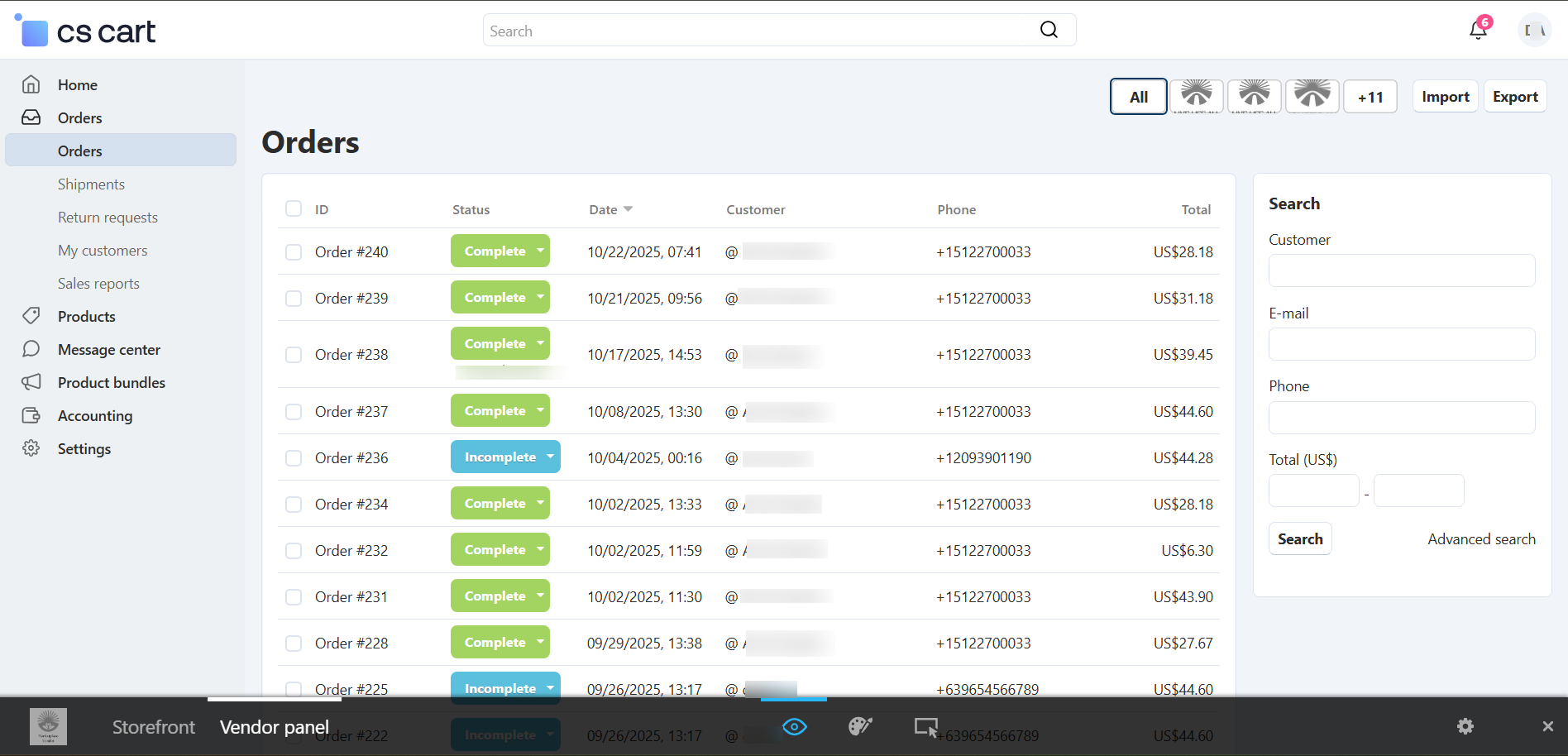
You can also track and update shipment information directly from this section to keep your customers informed and your orders organized.
Shipments
Allows you to manage and track all active shipments related to customer orders.
From this section, you can:
-
View all shipments currently in progress
-
Update the shipping status
-
Add or edit tracking numbers
-
Follow up on delivery progress
-
Print the packing slip for each shipment
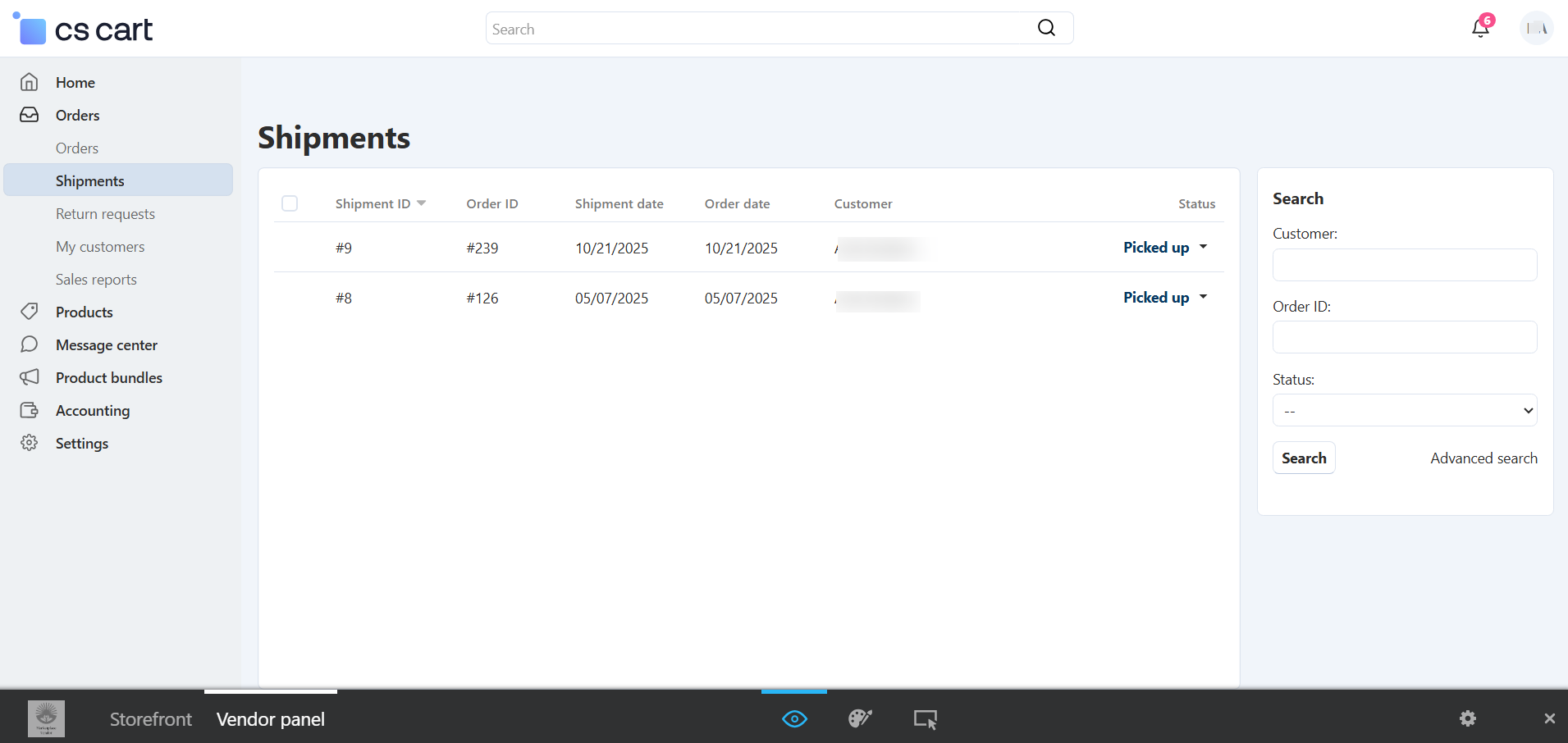
The Print Slip option lets you easily generate and print the packing slip to include inside the package or use for internal control. This helps improve order accuracy and keeps your shipping process organized.
Return Requests (RMA)
Allows you to manage product returns submitted by customers. From this section, you can review each request and take action based on your store’s Return Policy.
You can:
-
Review the reason for the return
-
Change the return status based on your Return Terms
-
Communicate decisions clearly to customers
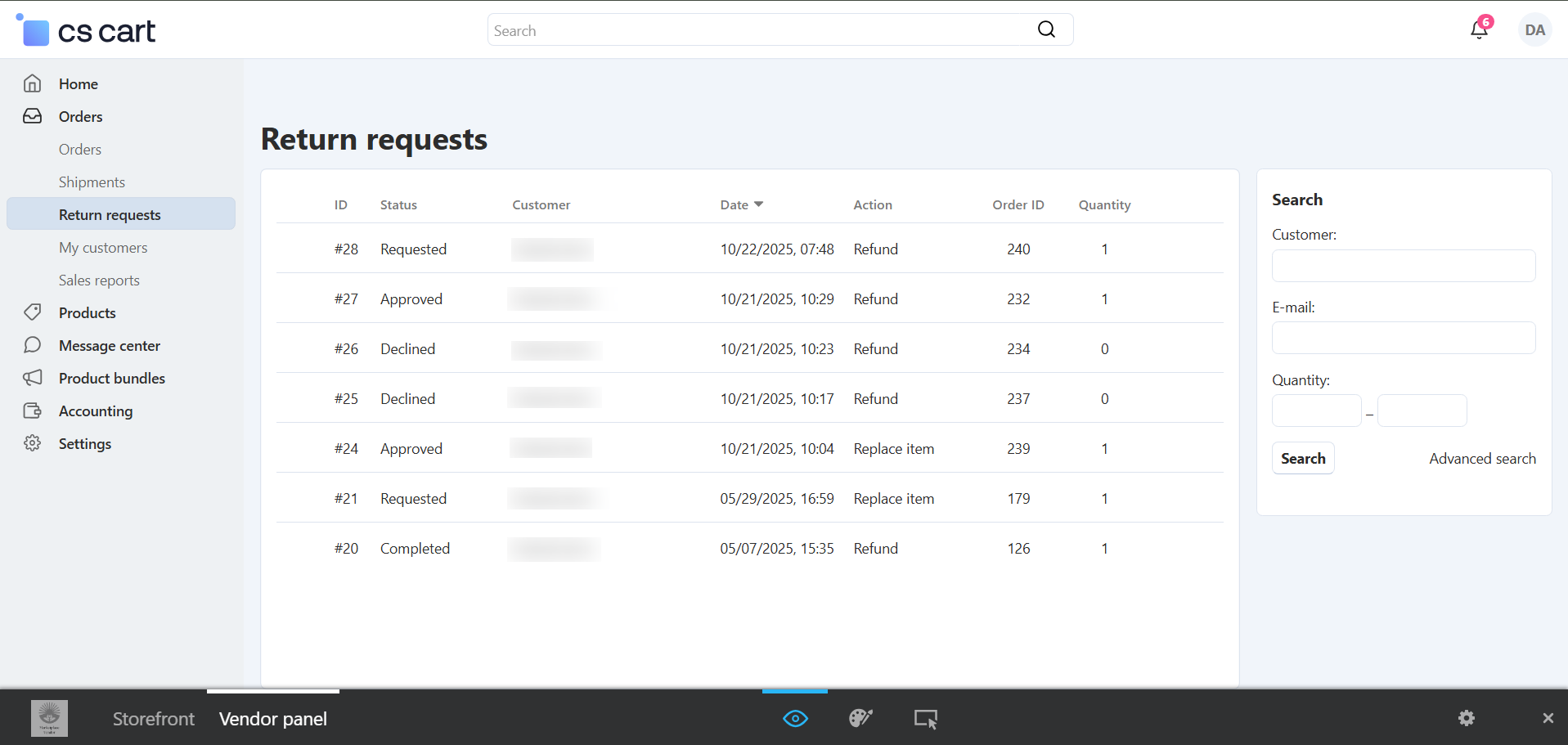
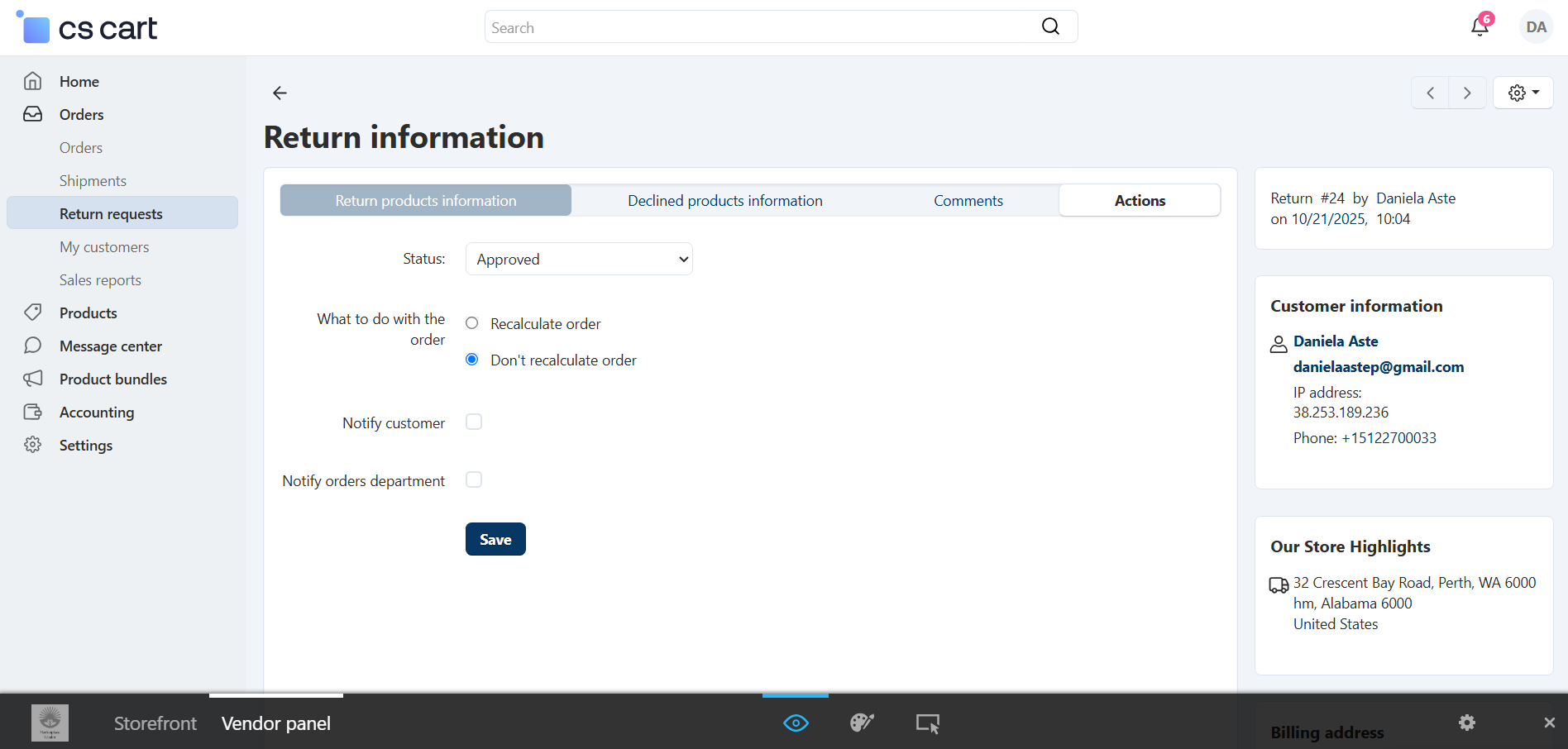
Available actions include:
-
Approve – Accept the return request
-
Decline – Reject the request based on your return conditions
-
Shipped – Mark once the customer has shipped the returned item
-
Completed – Select once the return process is fully finalized
Customers
Allows you to view important information about every customer who has placed an order in your store.
From this section, you can:
-
View customer details linked to each order
-
Identify repeat customers or new buyers
-
Contact customers when needed for order updates or support
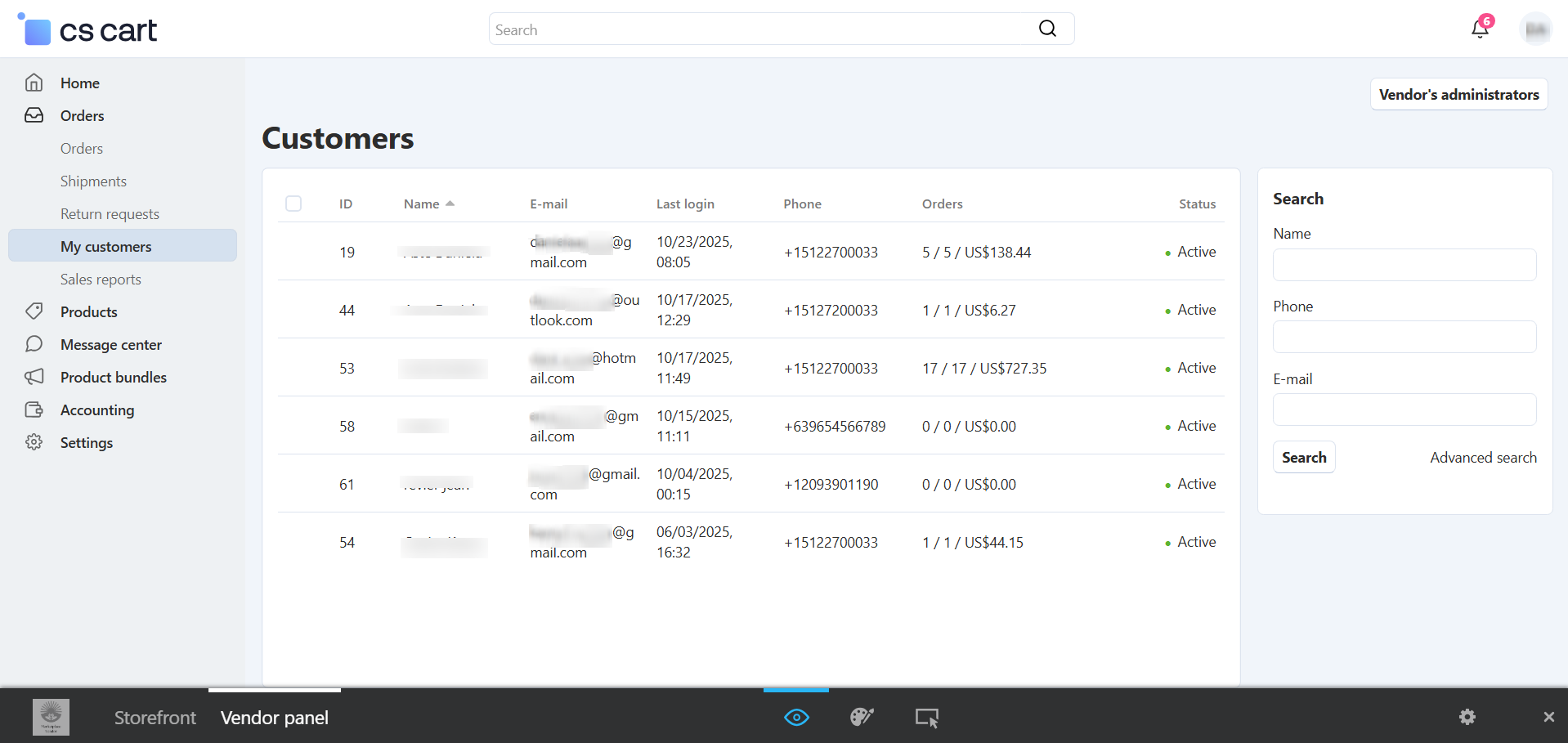
You will be able to access:
-
Customer Name – to identify each buyer
-
Email Address – useful for communication, marketing, and support
-
Phone Number – available when direct contact is required for order verification or delivery updates
Reports
Our reporting system provides powerful insights to help you monitor business performance, customer behavior, and sales trends. Below is a summary of the main reports available, along with their potential support for your decision-making.
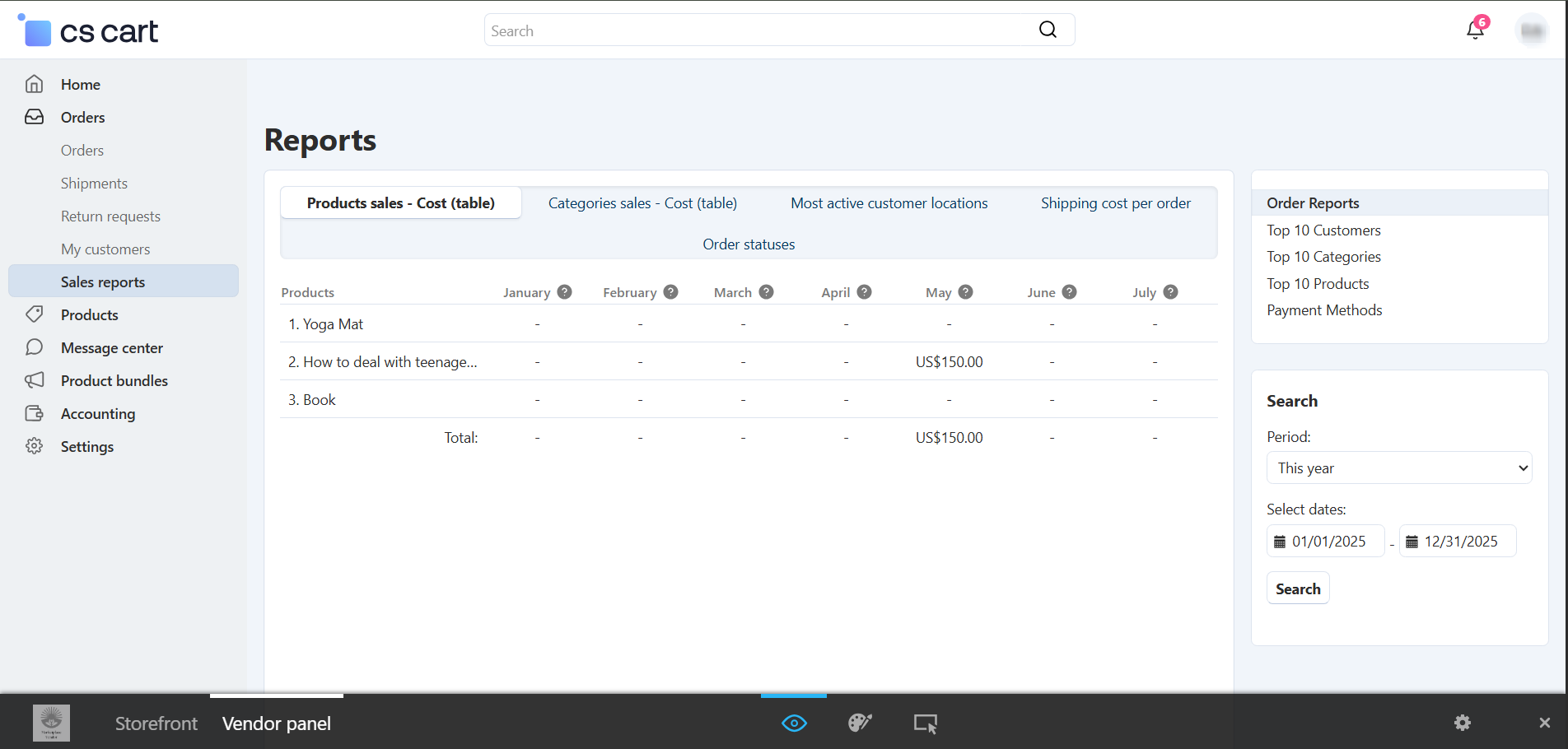
- Improve marketing strategies
- Track sales trends
- Identify growth opportunities
- Optimize product and shipping performance
2. Vendor Panel - Products
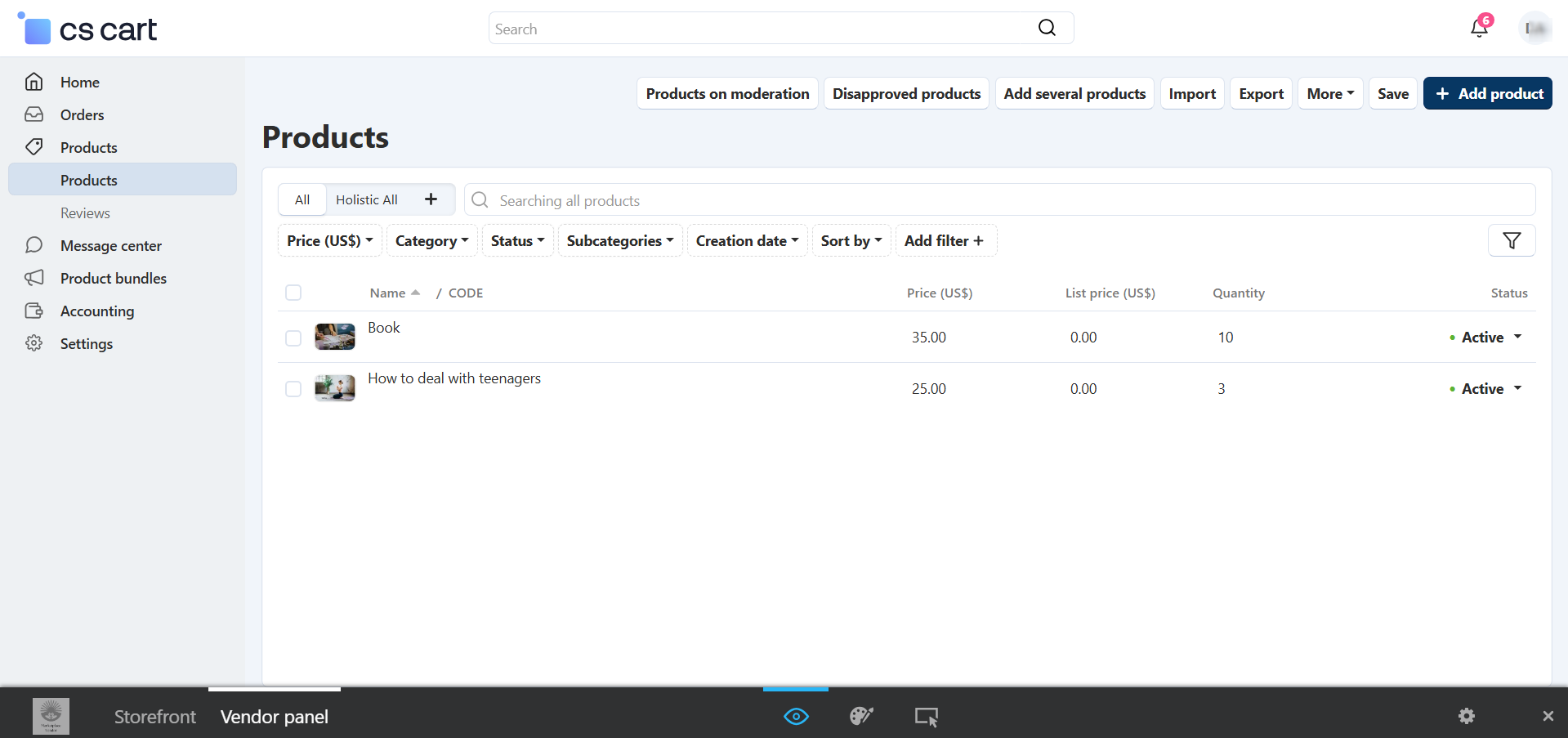
The Products page allows you to manage your entire product catalog efficiently.
From this section, you can:
- View the complete list of your products
- Check product status (Active, In Moderation, or Disapproved)
- Edit existing product details
- Quickly modify price, stock, and product status directly from the list view without opening each product page
- Add new products individually
- Upload products in bulk using the Import feature
- Download or back up your catalog using the Export option
- Manage inventory and product visibility
- Review which products are pending approval or need updates
This page gives you full control over your products and helps you keep your store updated and organized at all times.
Create a product
This is the preset of your product; you will need to insert all the mandatory (*) fields in order to complete your submission of your product.
- Remember not to use harmful words, this might get your product disapproved.
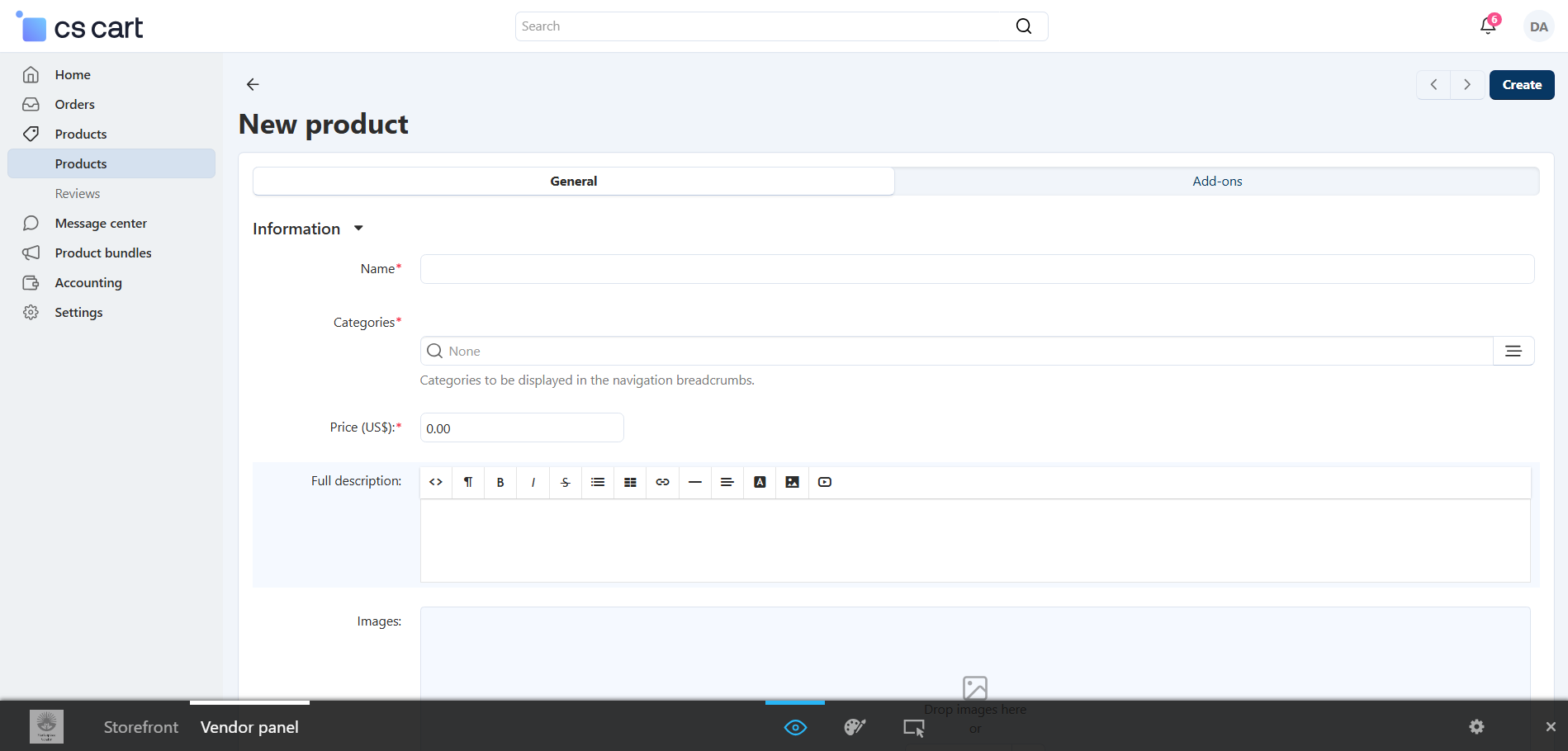
- Write a clear and accurate product title
- Provide a complete and detailed product description. This helps improve search visibility so your product appears when customers search for similar items
- Avoid using prohibited or harmful words (claims like “cures diseases,” offensive terms, or misleading guarantees may cause your product to be disapproved)
- Upload high-quality images that correctly represent your product
- Select the correct category to make your product easier to find
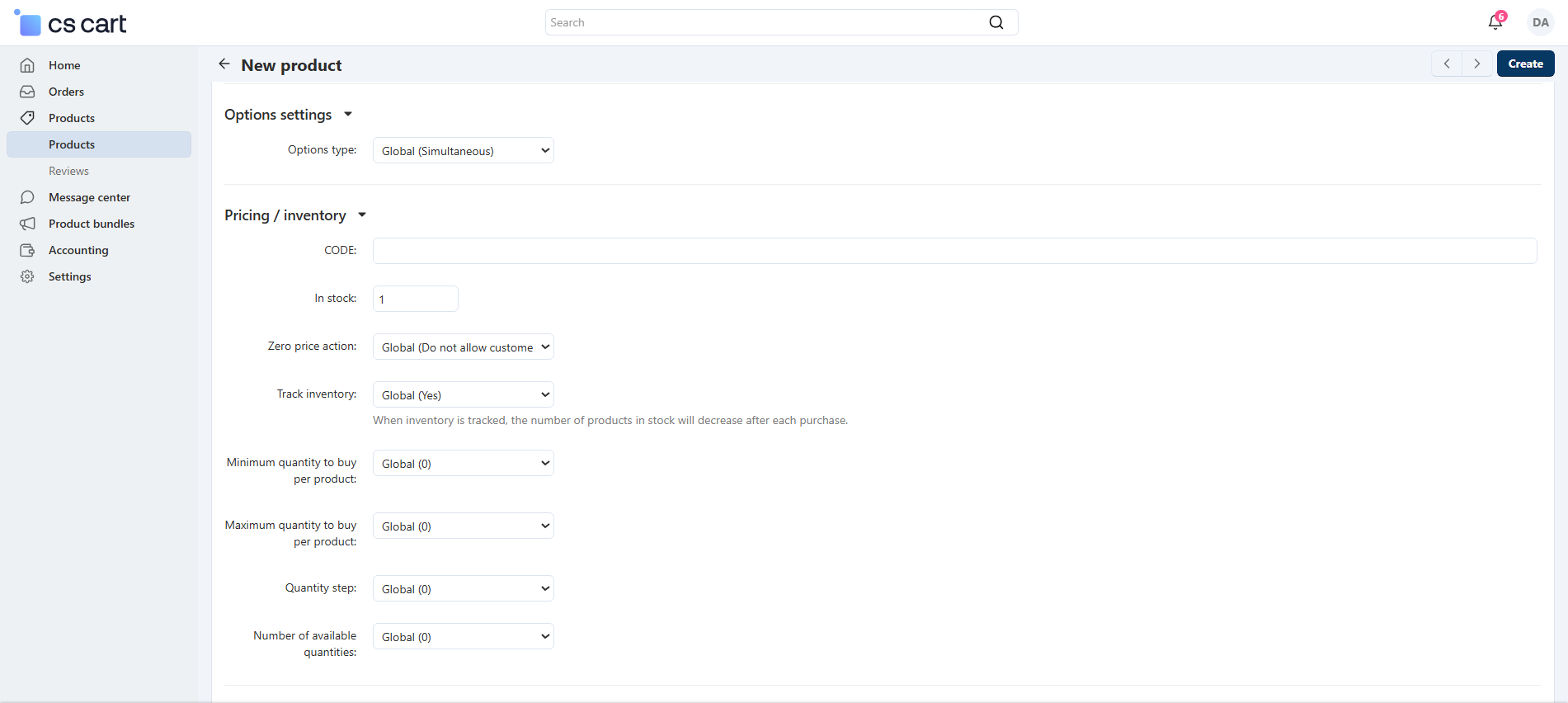
In this section, you will configure the price and stock settings for your product. Completing this information correctly ensures your product is available for purchase and managed properly in the system.
Here’s what each field means:
-
CODE (SKU / Product Code) Optional but recommended. Use it to uniquely identify your product for inventory control and easy search.
-
In stock: Enter the quantity available. This number will decrease automatically when customers make a purchase if inventory tracking is enabled.
-
Zero price action: Defines what happens if the product price is set to 0. It is recommended to leave it as default to avoid customers checking out with free products by mistake.
-
Track inventory: Choose whether the system should monitor product stock. Recommended setting: Yes, so the product goes out of stock automatically when inventory reaches 0.
-
Minimum quantity to buy per product: Set a minimum purchase limit if required. Default is 0 (no minimum).
-
Maximum quantity to buy per product: Use this if you want to limit how many units a customer can buy per order.
-
Quantity step: Use this only if products must be purchased in specific increments (for example: 2, 4, 6 units). Otherwise, leave it at 1 or default.
-
Number of available quantities: Leave as default unless you want to limit stock visibility to customers.
Tip: Always make sure your stock number is accurate to avoid overselling or customer service issues.
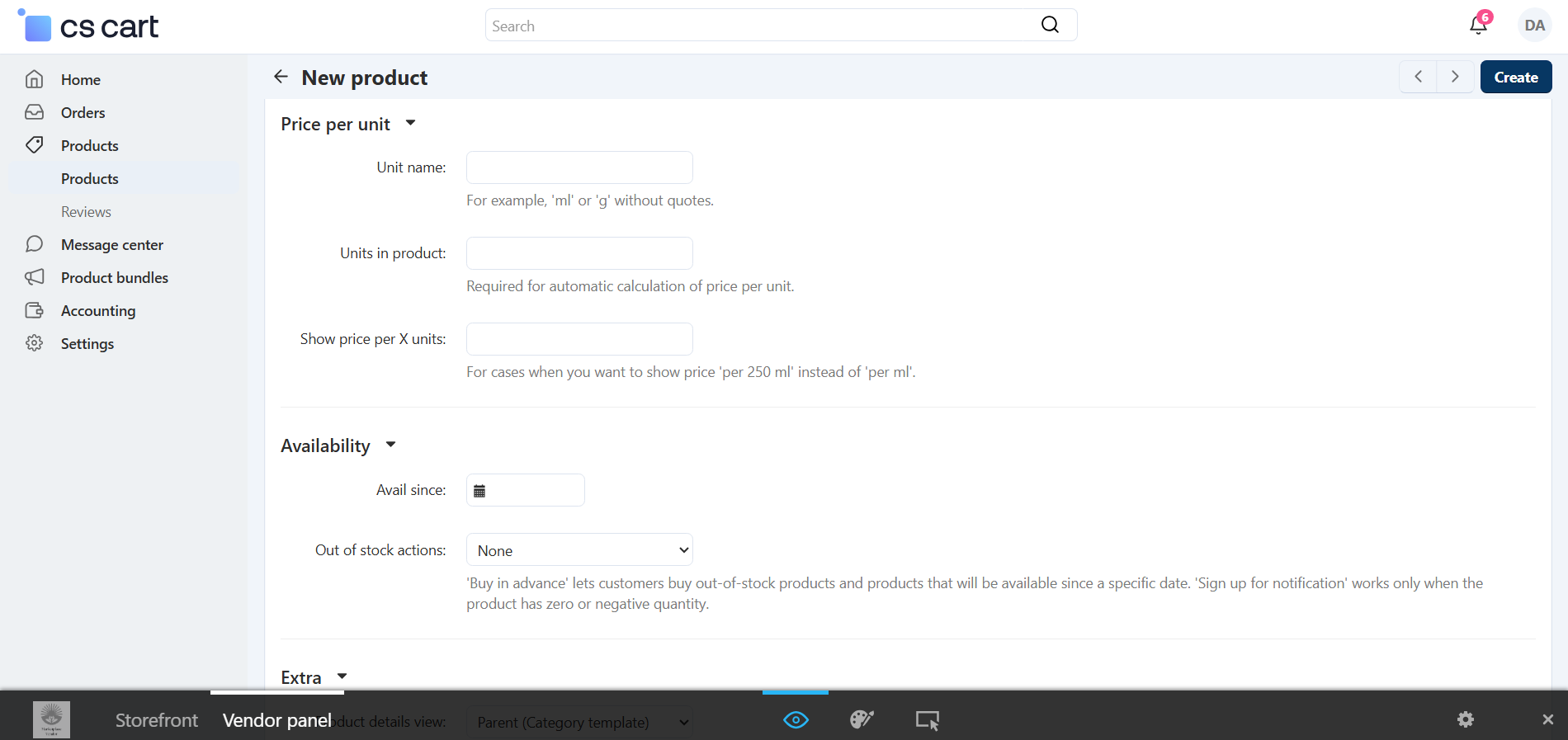
Price per Unit
This section is useful if your product is sold by measurement or portion (for example: per kg, per liter, per meter, per pack, etc.). It helps customers understand the real value of the product and is often required for compliance in some regions.
You will find:
-
Unit name: Enter the unit type your product is measured in.
Example: kg, liter, piece, box, pack, meter, etc. -
Units in product: Specify how many units are included in one product.
Example: If you sell a 500 ml shampoo bottle, units in product = 0.5 liters. -
Show price per X units: If enabled, the system will display a price per unit on the product page (Example: $4.00 per 100g).
This helps increase clarity and trust with customers.
* If your product is sold per piece and doesn’t need unit measurement, you can leave this section blank.
Availability
This section controls when and how your product appears as available in the store.
-
Available since: Choose a specific date to publish your product.
Useful if you want to schedule product launches or new arrivals. -
Out of stock actions: Select what happens when inventory reaches 0.
This section contains additional fields that help improve how your product is displayed and found by customers.
Product details view: Select how your product page will be displayed to customers. Recommendation: Keep the default setting unless you have a custom layout.
Downloadable: Enable this option only if your product is digital, such as:
- E-books
- Music files
- Software
- Digital guides
- Licenses or keys
When enabled, the system will allow you to upload files for customers to download after purchase.
Leave this disabled for physical products.
Short Description: This is a brief description that appears at the top of your product page or in product listings. Use 1–3 sentences to quickly highlight:
- What the product is
- Key benefits
- Main use
Popularity: This field is automatically filled by the system based on customer interactions such as views and purchases. No action needed.
Search Words: Add keywords that help customers find your product using the search bar. Use words that people commonly search for related to your product.
- Separate each term with a comma
- Include common spelling variations if needed
- Think from a customer perspective.
Add-On
In this section, you only need to manage the RMA (Return Merchandise Authorization) settings for your product.
From here you can:
Enable or disable returns for this product: Mark if the product is returnable or non-returnable.
Set the return period (in days): This defines how many days after purchase the customer is allowed to request a return.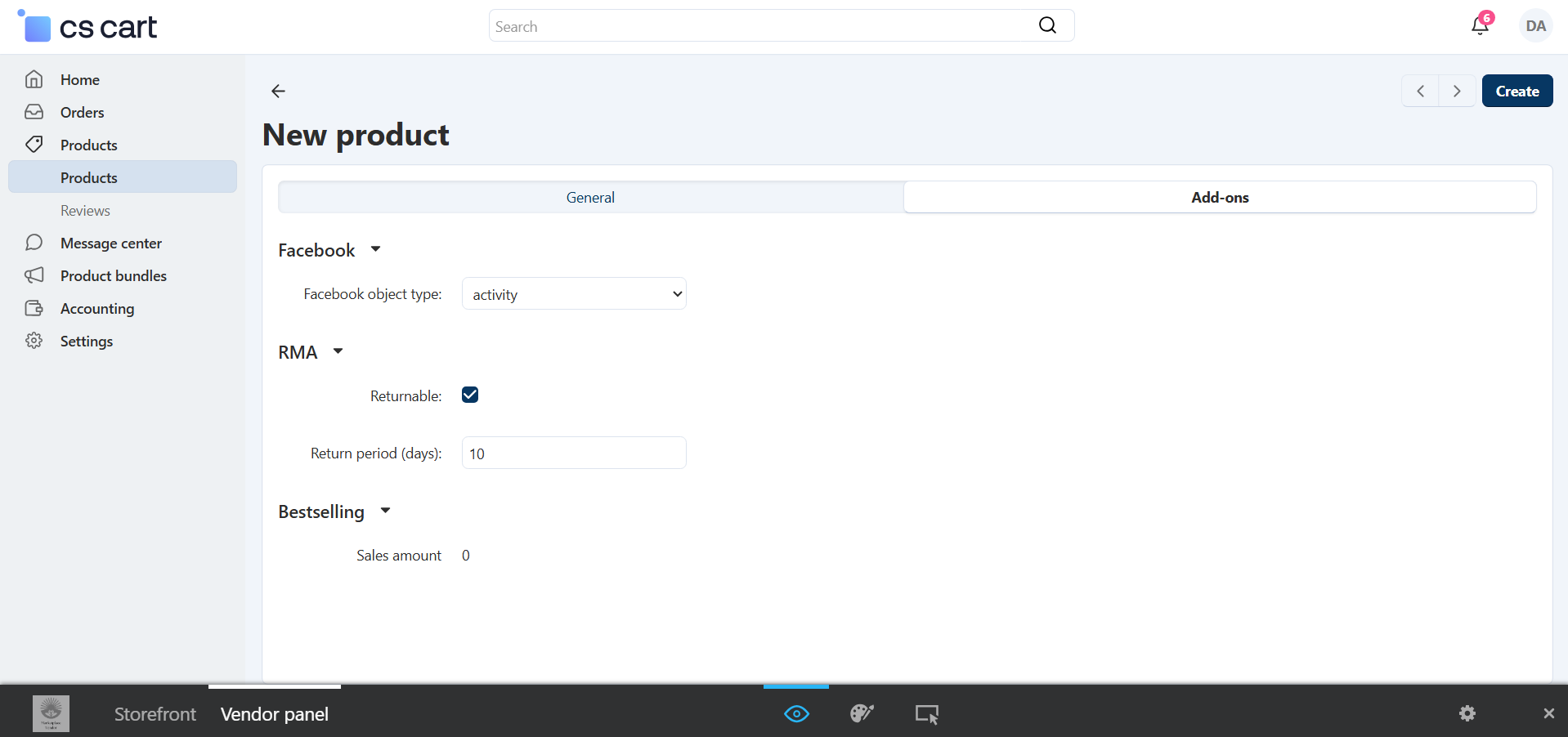
Each product that you create individually or in bulk, would be evaluated before approval. We will contact you in case we would need a better description on the product or fullfil a field.
Product Approved
Once your product has been approved, you will see new tabs that allow you to complete additional information and improve product performance, search visibility, and customer experience.
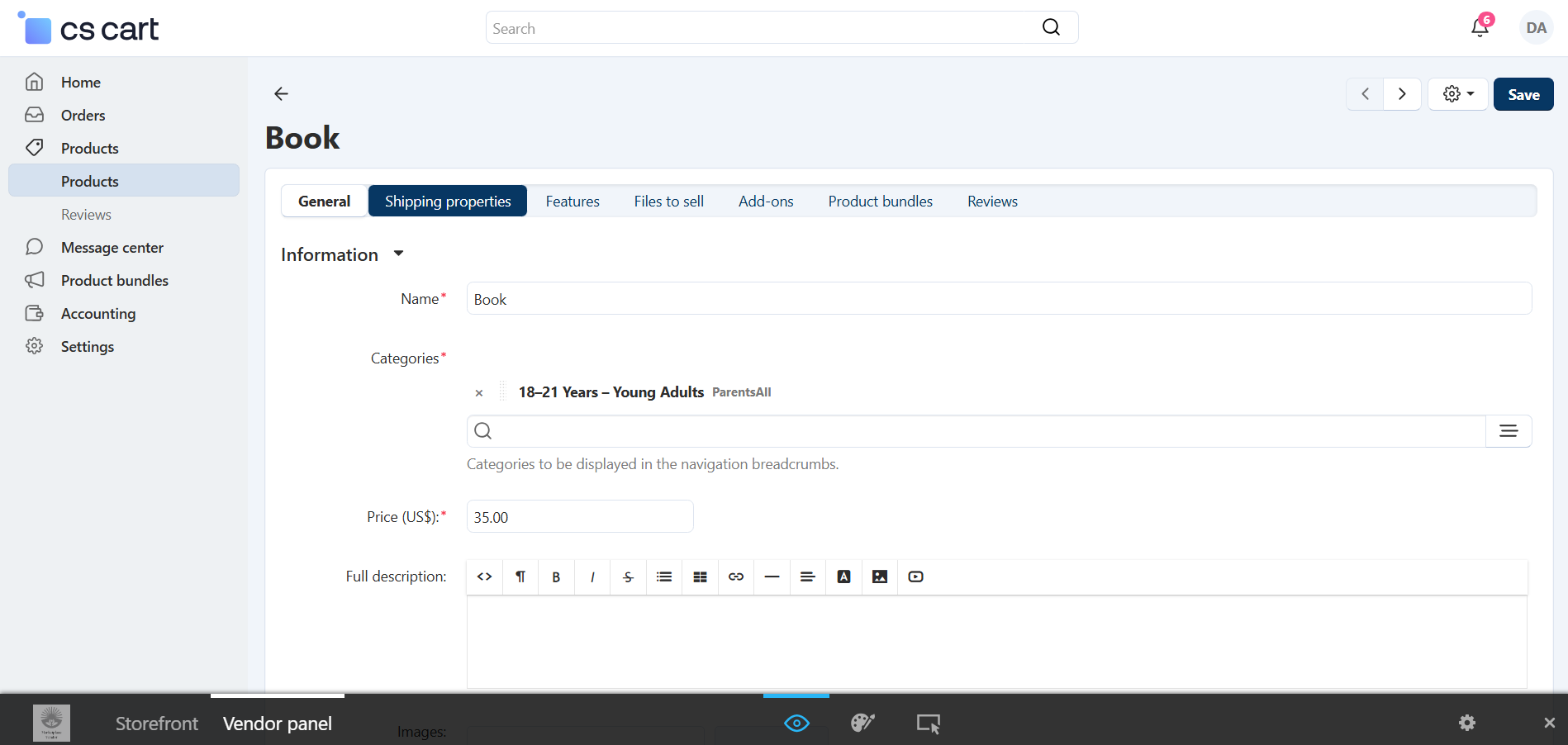
- Shipping Properties: Add product weight, dimensions, and shipping details. These settings are required for calculating shipping rates and delivery methods correctly.
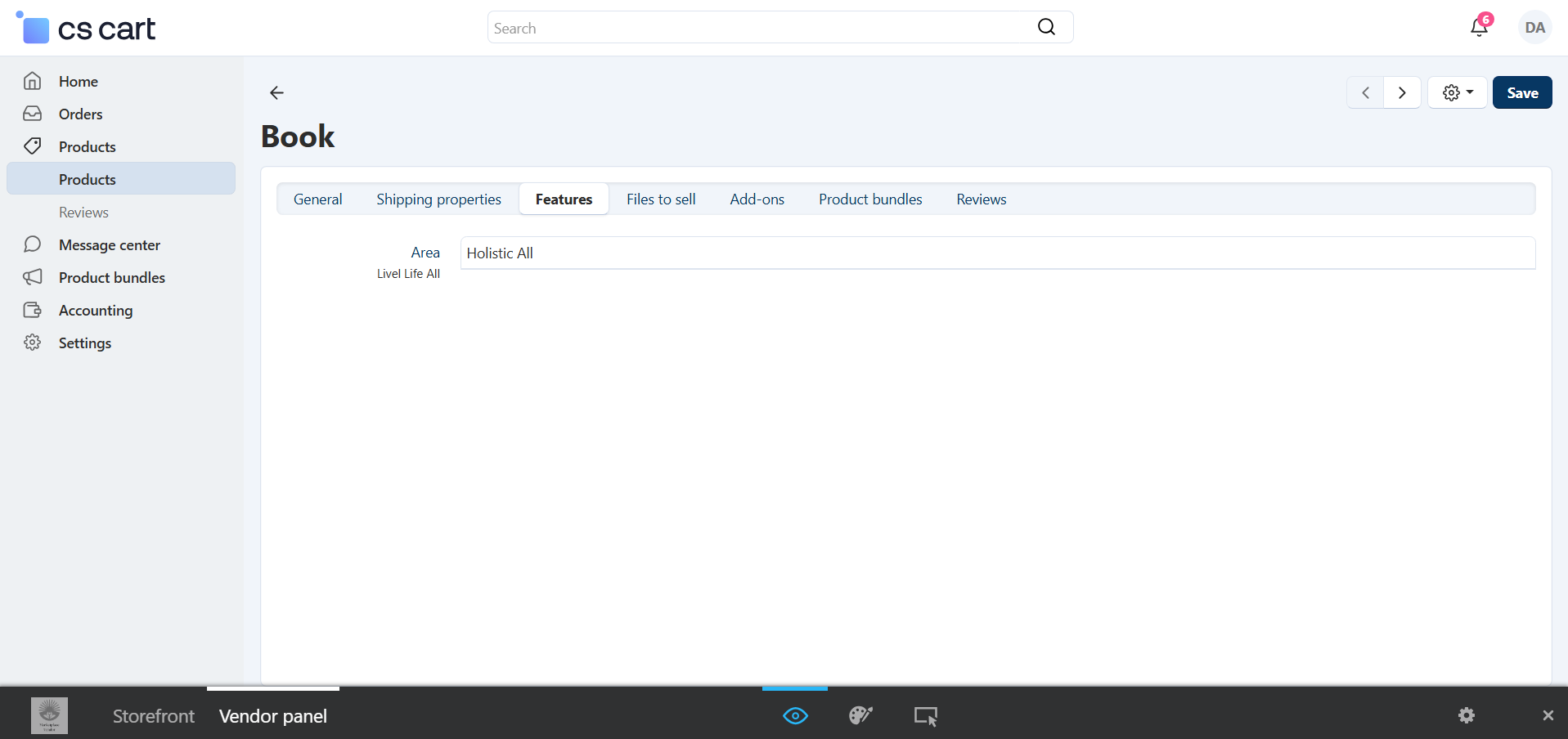
Features
At the Area field you should add to which site this product is linked. Example: Holistic All.
This would help to find your product when the customers start filtering along sites.
- Files to Sell: If your product includes digital files or downloadable content (manuals, instructions, warranties, or digital assets), you can upload them here.
- Product Bundles:
Allows you to combine multiple products into a single offer. This is ideal for promotions, gift sets, or product combinations that customers frequently buy together.
To create a bundle, follow these steps:
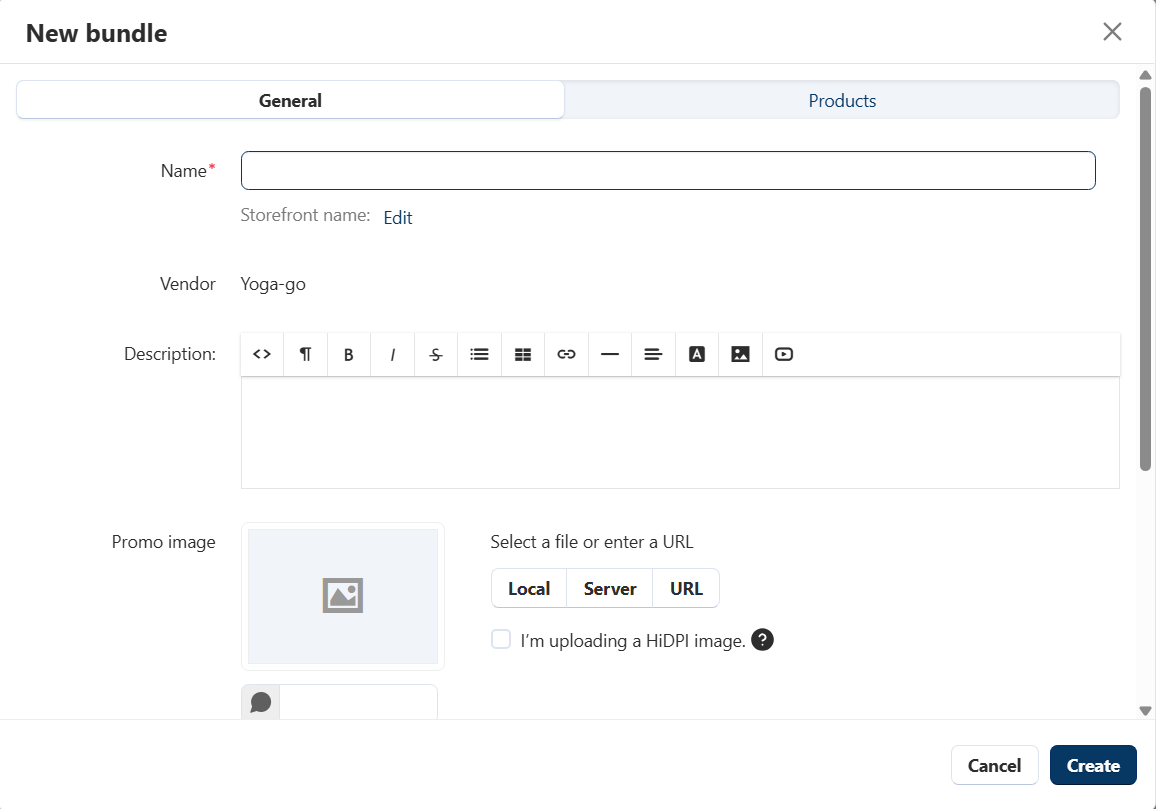
- Create a bundle name: Choose a clear and attractive name.
- Write a product bundle description: Describe what is included in the bundle and highlight the value or benefits.
- Add an image: Upload an image that represents the full bundle or pack. This helps customers easily identify the promotion.
- Set promotion duration (optional): If the bundle is temporary or seasonal, you can limit its availability.
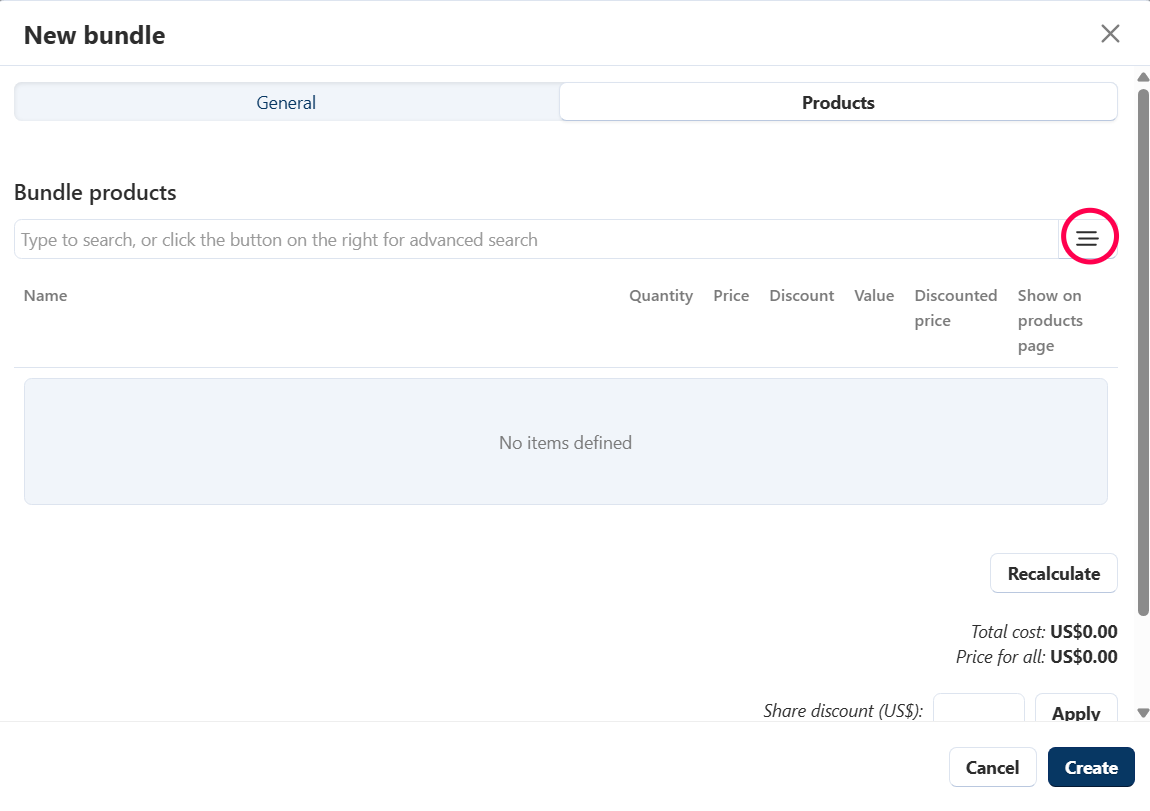
- Click on the three-lines icon (shown in red in the image) to open the product selector.
- Choose the products you want to include in this bundle.
- For each product, set the quantity that will be included in the bundle.
- Set a discount for the bundle: You can choose a discount by percentage (%) or by value ($)
- Click Recalculate to update and verify: Total cost & final bundle price
3. Vendor Panel - Message Center
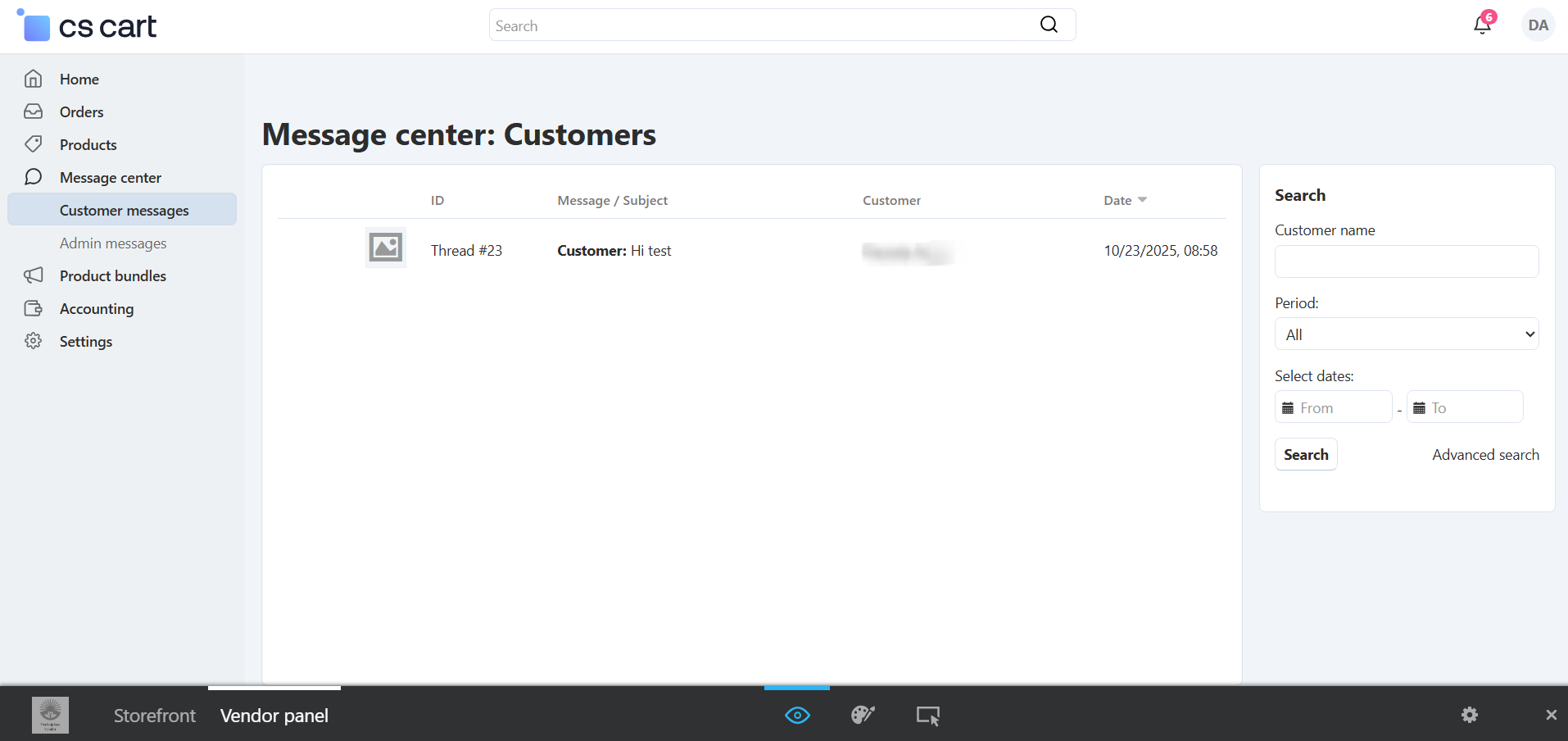
The Message Center allows you to manage all communication related to your store in one place. It is divided into two sections:
Customer Messages
Here you will see messages sent by customers who:
- Have questions before purchasing a product
- Need help after placing an order
- Want to clarify product details, shipping, returns, or other concerns
You can respond directly to customers from this section, helping build trust and improving customer service.
Admin Messages
In this section, you will receive important notifications from the Marketplace Administration, such as:
- Product approvals or rejections
- Account updates
- Policy reminders
- Platform announcements
You can also contact the Admin Team anytime by clicking the button: +Contact Administrator
Use this option if you need help, have questions, or require support.
5. Vendor Panel - Accounting
Accounting tab allows you to track all financial activity related to your store.
From this section, you can:
-
View all transactions generated from your sales
-
See payment details by order
-
Track commissions and service fees applied according to your vendor plan
-
Understand your net earnings
Note:
Amounts shown in white represent the final value you receive after the platform commission has been deducted. This makes it easy to understand exactly how much you are earning from each order.
3. Add-ons
Add-ons allow vendors to enhance their visibility in the marketplace and on our partner sites. These optional features help you promote your brand, showcase your products, and attract more customers.
How to Access Add-ons
- Log in to your Vendor Panel.
- Change to Storefront
- Go to the footer, and on the Vendor area you will find Vendor Add-Ons
- Browse the list of available add-ons that can help boost your store’s presence.
- Add the choosen one to your cart and proceed to checkout.
- At the checkout page, at the customer details add the name of your Business.
*Remember that these add-ons have a duration of 1 month (30 days).
After that period, if you wish to continue enjoying the service, you will need to purchase the add-on again.
Benefits:-
Increased exposure to new customers.
-
Placement on the homepage’s featured section.
*Always check the description of each add-on for details, pricing, and requirements.